

Understanding how to copy and paste an image URL is essential when you need to share, embed, or reference an image online. Whether you’re working on a blog, sending an image link to someone, or embedding media into a website, knowing how to get the correct image source URL saves time and prevents broken links. An image URL is the direct web address that points to an image file stored on a server. This link usually ends in formats like .jpg, .png, .webp, or .gif. Unlike a webpage link, an image URL loads only the image itself.
Modern browsers like Google Chrome, Mozilla Firefox, Microsoft Edge, and Safari make it simple to copy image URL from website directly. However, the process differs slightly between desktop and mobile devices. In this guide, you’ll learn exactly how to copy and paste image URLs on different platforms, how to find image source URLs if direct copy is blocked, and how to fix common problems like broken links or restricted images.
What Is an Image URL?
To understand how to copy and Paste Image URL, you first need to know what an image URL actually represents. An image URL is the direct web address pointing to a specific image file hosted on a server. Unlike a regular webpage URL, which loads an entire page with text and design elements, an image URL loads only the image itself. Most image URLs end with file extensions like .jpg, .png, .gif, or .webp. When you click a proper image source link, the browser displays just the image file. This is the link you need when you want to embed an image in HTML, share it directly, or upload it to a content management system.
When you copy an image URL from a website, you are copying the direct path stored in the website’s server or CDN (Content Delivery Network). Browsers like Google Chrome and Mozilla Firefox retrieve this file from the hosting server when the page loads. Sometimes, you may need to manually find the image source URL using browser tools if right-click copying is disabled. Understanding how URLs work helps you avoid copying the page link instead of the actual image link. Mastering this basic concept makes learning how to get an image link much easier across devices and browsers.
How to Copy and Paste an Image URL on a Desktop?
If you’re using a computer, learning how to copy and paste an image URL is straightforward. The process works similarly across browsers on Windows and macOS.
Right-Click Method (Easiest Way)
Open the webpage containing the image. Right-click on the image using your mouse or trackpad. In browsers like Google Chrome, Mozilla Firefox, Microsoft Edge, or Safari, select “copy image URL from website address” or “Copy image link.” This is the simplest image URL copy method. Once copied, you can paste it anywhere using Ctrl + V (Windows) or Command + V (macOS).
Open Image in New Tab
If direct copying doesn’t work, right-click and choose “Open image in new tab.” Once the image loads alone in a new tab, copy the URL from the browser’s address bar. Be careful not to copy the webpage URL instead of the actual image link. The correct image URL typically ends in .jpg, .png, or similar formats. Understanding this desktop process makes it easier to copy the image URL from the website accurately and avoid broken links.
Copy and Paste Image URL on Mobile
Learning how to copy and Paste Image URL on mobile devices is slightly different from desktop, but the process is still simple. Whether you’re using Android or iOS, modern browsers allow you to access the image source link with a few taps.
Long-Press Method (Browser)
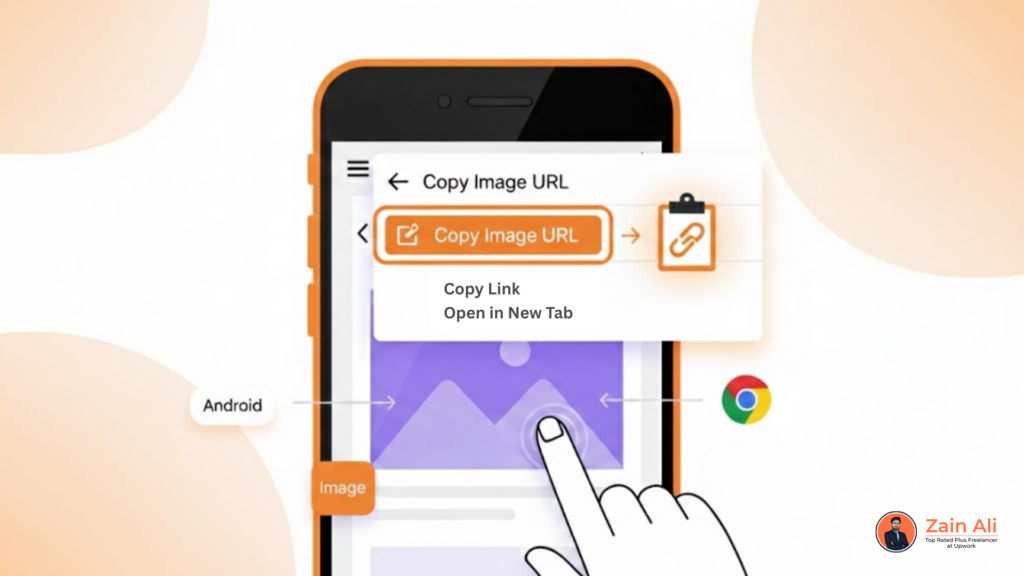
Open the webpage in a mobile browser like Google Chrome or Safari. Press and hold your finger on the image until a menu appears. Choose “Copy image address” or “Copy link.” This is the most common image URL copy method on mobile.
After copying, you can paste the link into a message, email, or document by tapping and holding in a text field, then selecting Paste.
Open Image in New Tab
If the copy option is not available, select “Open image in new tab.” Once the image loads independently, copy the URL from the browser’s address bar. Be careful not to copy the page link instead of the actual image source. To correctly find image source URL, ensure the link ends with .jpg, .png, or another image format.
Understanding how to get an image link on mobile ensures smooth sharing and embedding without broken references.
How to Find Image Source URL?
Sometimes, when learning how to copy and paste an Image URL, you may notice that right-click is disabled on certain websites. Many site owners block right-click to prevent easy downloading or copying. However, you can still find the image source URL using the built-in browser tools.

Use Inspect (Developer Tools)
Open the webpage and right-click anywhere on the page (not necessarily the image) and choose Inspect. This works in browsers like Google Chrome, Mozilla Firefox, and Microsoft Edge. Developer tools will open at the bottom or side of your screen.
Click the Elements tab and press Ctrl + F (or Command + F on macOS). Search for .jpg, .png, or .webp. You’ll see the direct image link inside the HTML code. Copy that URL.
View Page Source
Right-click on the page and select View Page Source. Then search for image file extensions to locate the direct path. This advanced image URL copy method helps you retrieve image links even when websites restrict simple copying. Understanding how to get the image link through the source code ensures you can always access the correct image file.
Common Issues When Copying a URL
While learning how to copy and Paste Image URL, you may encounter problems that prevent the image from loading properly. These issues are common and usually easy to fix once you understand the cause.
Copying the Page URL Instead of the Image URL
One of the most frequent mistakes is copying the webpage link instead of the direct image link. To avoid this, make sure the URL ends with an image file extension like .jpg, .png, .gif, or .webp. This ensures you successfully copy the image URL from the website rather than the page address.
Broken Image Links
Sometimes, the image URL may lead to a broken file. This can happen if the image was moved or deleted from the server. To fix this, try to find the image source URL again using the inspect method in browsers like Google Chrome or Mozilla Firefox.
Hotlink Protection
Some websites block direct linking to their images (hotlinking). If the image doesn’t display after pasting the URL, the site may have restrictions in place. In such cases, downloading and uploading the image legally to your own server may be necessary.
CDN or Dynamic Image URLs
Images served through content delivery networks may include tracking parameters. These URLs sometimes expire. Always test the link in a new browser tab to confirm it works. Understanding these common problems ensures you master the image URL copy method and avoid sharing broken or restricted links.
Alternative Ways how to Get Image Link
When learning how to copy and Paste Image URL, it’s equally important to understand safe and legal practices. Not every image online is free to reuse, and directly copying an image URL may violate copyright policies if used improperly.
Use Official Share or Embed Options
Many platforms provide built-in sharing features. Websites like social media platforms or stock image libraries often include a direct embed or share link option. Using these tools ensures you legally know how to copy and Paste Image URL from the website without violating usage rights.
Download and Re-Upload to Your Own Server
If you need full control over the image, download it (if permitted) and upload it to your own website hosting. This avoids hotlinking issues and ensures the image remains available. This is often the safest image URL copy method for bloggers and web developers.
Use Free Image Platforms
Websites that provide royalty-free images typically allow direct linking or downloading. Always check licensing terms before use.
Check Image License Before Sharing
Before you find the image source URL and reuse it, confirm whether the image is licensed for redistribution. Search engines like Google offer usage rights filters in image search.
By following these methods, you can safely learn how to copy and Paste Image URL without risking copyright violations or broken links.
Conclusion
Understanding how to copy and Paste Image URL is a simple yet essential digital skill. Whether you are embedding images in a blog post, sharing visual content with colleagues, or troubleshooting broken links, knowing how to retrieve the correct image source saves time and prevents errors. Throughout this guide, you learned how to copy an image URL from a website on both desktop and mobile devices. You also explored advanced techniques to find the image source URL using browser developer tools when the right-click function is disabled. These methods are compatible with platforms such as Windows, macOS, Android, and iOS.
Frequently Asked Questions
1. How to Copy and Paste Image URL Correctly?
2. What is the difference between the page URL and the image URL?
3. How to get the image link if right-click is disabled?
4. Why is my copied image URL not working?
You copied the page URL instead of the image file
The website has hotlink protection
The image was deleted or moved